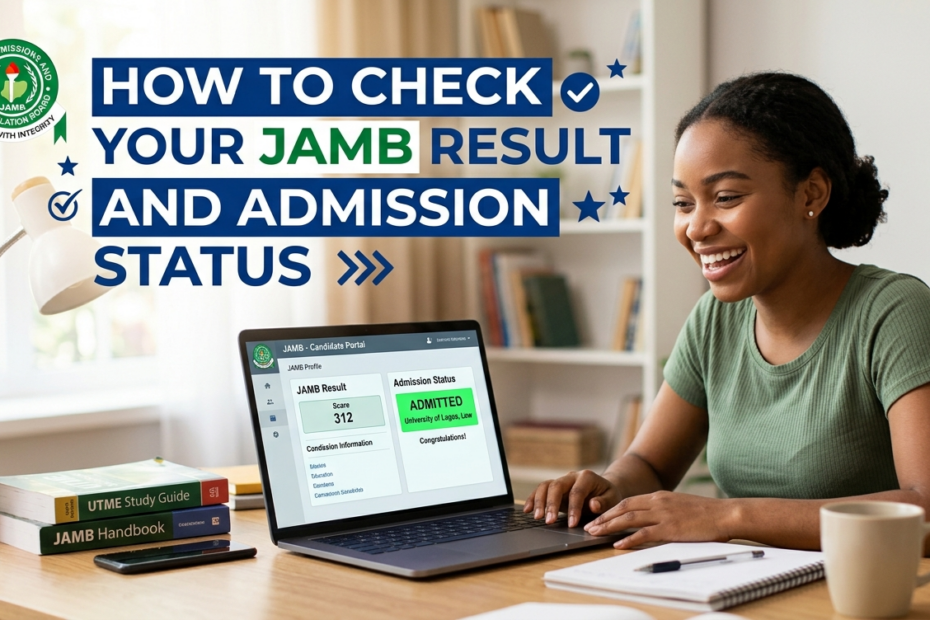
The Joint Admissions and Matriculation Board (JAMB) is Nigeria’s centralized body responsible for conducting entrance examinations for tertiary institutions—universities, polytechnics, colleges of education, and similar establishments.
Each year, hundreds of thousands of candidates sit the JAMB Unified Tertiary Matriculation Examination (UTME) in order to qualify for admission into their chosen institutions and courses.
The organization not only conducts the exam but also processes the results and makes them available online, serving as a vital bridge between candidates and the various universities, polytechnics, and other institutions seeking new students.
Understanding and promptly checking your JAMB result and admission status holds tremendous importance. First, it confirms whether your performance meets the minimum cutoff marks set by your preferred institutions.
While some schools mirror JAMB’s official cut-offs exactly, others raise their internal benchmarks—so checking early helps you gauge where you stand. Second, discovering your admission status quickly enables you to proceed with essential follow-up steps: printing your admission letter, completing acceptance processes, and making necessary payments before deadlines elapse.
Delays in this process can result in missed screenshots, forgotten PINs, or even forfeited opportunities. By staying on top of your result and status, you maintain control of your academic journey, giving yourself the best chance of securing admission and preparing for the next phase of study.
This guide is designed to walk you, step by step, through the entire process—starting from how to access your JAMB result, navigating the online portal, understanding the implications of your score, all the way to checking and confirming your admission status.
Whether you’re aiming for a federal university, a private polytechnic, or a state college of education, these clear instructions will help you avoid common pitfalls and confidently manage your application outcome.
By the end of this guide, you will feel well-equipped to monitor your admission journey, make informed decisions, and act quickly when needed. Let’s begin this journey together—ensuring you’re fully prepared, informed, and ahead of schedule as you await your admission.
How to Check Your JAMB Admission Status
After writing the UTME and receiving your result, the next important step is to monitor your admission status. The Joint Admissions and Matriculation Board (JAMB) has a centralized platform known as the Central Admissions Processing System (CAPS).
This portal helps candidates track their admission progress and take necessary actions, such as accepting or rejecting offers from institutions. Here is a simple, up-to-date guide on how to check your admission status in 2026:
Step 1: Visit the JAMB CAPS Portal
Start by going to the official JAMB CAPS portal via https://efacility.jamb.gov.ng. This is where all admission-related updates and decisions are made available to candidates.
Step 2: Log in with Your JAMB Credentials
Enter your email address (used during JAMB registration) and password to log into your JAMB profile. Ensure your login details are correct to avoid access issues.
Step 3: Click on “Check Admission Status”
Once logged in, look for the “Check Admission Status” link, usually found on the left-hand menu. Clicking it will take you to a new page where you can verify your admission details.
Step 4: Select Exam Year and Enter Registration Number
From the dropdown menu, select your exam year (e.g., 2026). Then, input your JAMB Registration Number in the space provided and click “Check Admission Status.”
Step 5: View Your Admission Status
Your current status will be displayed and can show one of the following:
-
“Admitted” – Congratulations! You’ve been offered a provisional admission.
-
“Not Admitted” – You haven’t been offered admission yet.
-
“Admission in Progress” – Your admission is still being processed; check back regularly.
Important Note:
Candidates are advised to monitor their JAMB CAPS regularly. Once admitted, you must accept or reject the admission offer through CAPS. Failing to do this in time could lead to the withdrawal of the offer. Accepting the admission confirms your readiness to join the institution, while rejecting it allows you to wait for another offer.
Staying updated on CAPS ensures you never miss out on crucial admission steps.
What to Do After Checking Your Result
Once you’ve successfully checked your JAMB result, the next steps are very important in guiding your admission journey. Checking the result is just the beginning; what you do afterward determines how well you manage your chances of securing admission. Here’s what you should do immediately after viewing your score:
1. Print Your JAMB Result Slip
The first thing you should do is print out a copy of your result. This document will be needed during post-UTME screening, registration processes, and at different stages of your admission.
To print your result slip, log in to the JAMB eFacility portal, navigate to “Print Result Slip,” and follow the instructions. You may be asked to make a small payment online before you can print.
Make sure the printout is clear, properly labeled, and contains your full name, registration number, each subject score, and total score. Keep both physical and digital copies safe for future reference.
2. Use Your Score to Apply for Post-UTME or Direct Entry
Your UTME score is a key determinant of whether you are eligible to apply for Post-UTME screening or Direct Entry (DE) at your chosen institution. Most universities and polytechnics announce their post-UTME forms shortly after the release of JAMB results. Visit the official website of your preferred school to confirm the cut-off mark, screening requirements, and deadlines.
If you’re a Direct Entry candidate, ensure your credentials (like A-levels or diploma certificates) are ready and submitted as required. Also, pay close attention to the eligibility criteria specific to your course and institution.
3. Begin Monitoring Your Admission Status Regularly
After applying for Post-UTME or Direct Entry, start checking your admission status frequently on the JAMB CAPS portal. Institutions update their admission lists gradually, so checking regularly ensures you don’t miss your offer. Also, remember that once admitted, you must accept the offer via CAPS to confirm your admission officially.
Following these steps after checking your result helps you stay organized, meet deadlines, and increase your chances of getting admitted without unnecessary stress.
What to Do After Admission is Offered
Once you’ve been offered admission by your chosen institution through the JAMB CAPS portal, it’s important to act quickly and follow the correct steps to secure your place.
Getting admitted is a major achievement, but your admission process is not complete until you officially accept it and begin school-related documentation. Below are the key steps to take immediately after admission is offered:
1. Accept the Admission on CAPS
As soon as you see “Admitted” on your CAPS dashboard, you must click the “Accept Admission” button to confirm your decision. This action notifies JAMB and your school that you have accepted the offer.
Failing to do this in time may lead to the withdrawal of your admission. If you don’t want the offer—for instance, if you’re waiting for another school—you can click “Reject” instead. However, once an admission is accepted or rejected, it cannot be changed.
2. Print Your JAMB Admission Letter
After accepting the admission, the next step is to print your official JAMB Admission Letter. This letter serves as proof that you’ve been admitted and is required for school registration, clearance, and NYSC in the future. To print your letter:
-
Log into the JAMB eFacility portal.
-
Navigate to “Print Admission Letter.”
-
Pay the required fee online.
-
Download and print the letter.
Ensure that all the details on the letter—your name, course, institution, and registration number—are correct.
3. Proceed with Your School’s Clearance and Registration
Once you’ve accepted your admission and printed your admission letter, visit the official website of your school to get details on clearance procedures, registration timelines, and required documents. Most institutions will require original copies of your credentials, passport photographs, JAMB result slip, admission letter, and sometimes a letter of attestation.
Timely school registration is crucial, as missing deadlines could lead to automatic forfeiture of your admission. Always stay updated by checking your school’s portal and following their social media announcements.
Taking these steps promptly ensures a smooth transition into your new academic journey.
Troubleshooting Common Issues
While using the JAMB portal or CAPS platform, it’s not uncommon to face issues that may delay or disrupt your admission process. These problems can be frustrating, but the good news is that most of them have clear solutions. Below are some of the most common issues candidates face and what to do when they occur:
1. What to Do If Your Result Is Not Showing
If your JAMB result does not display after entering your registration number, phone number, or email:
-
First, ensure that you’re visiting the correct JAMB result portal at https://www.jamb.gov.ng.
-
Make sure your internet connection is stable.
-
If it still doesn’t show, your result may be under review due to issues like multiple registrations, exam malpractice, or technical errors during the exam.
In such cases, wait a few days and check again. You can also try the SMS method by sending “UTMERESULT” to 55019 or 66019 using the phone number linked to your JAMB profile. If the issue persists, visit the nearest JAMB office for assistance.
2. How to Retrieve a Lost JAMB Registration Number
Losing your JAMB registration number can be stressful, especially since it’s required for checking results and admission status. To retrieve it:
-
Check your email inbox for the confirmation message you received after registration.
-
Log in to your JAMB profile via https://efacility.jamb.gov.ng using your registered email and password. Your registration number is usually displayed on your dashboard.
-
If you still can’t find it, visit a JAMB-approved CBT center or the nearest JAMB office with a valid ID and evidence of registration to request a retrieval.
3. What to Do If Your CAPS Page Is Blank or Says “Admission in Progress”
A blank CAPS page or the message “Admission in Progress” can be confusing, but it usually means your admission is being processed. Here’s what to do:
-
Use a desktop or laptop browser, not a mobile phone, for full page display.
-
Switch to desktop mode on your mobile browser if you must use a phone.
-
Keep checking CAPS regularly. “Admission in Progress” means your institution has submitted your name to JAMB, and it’s awaiting approval.
If your CAPS page remains blank for weeks, visit a JAMB office for further clarification.
By addressing these common issues properly, you can stay on track and avoid unnecessary delays in your admission journey
Conclusion
As you progress through the JAMB admission process, staying informed and proactive is key to securing your spot at a tertiary institution. From checking your UTME result to monitoring your admission status on CAPS, every step requires attention, patience, and quick action when necessary.
Always use official JAMB platforms, follow your school’s updates closely, and make sure your documents are accurate and ready when needed.
It’s important to check your JAMB CAPS regularly—even if you’ve not yet been admitted. Admission is often released in batches, so the fact that you haven’t been offered admission today doesn’t mean it won’t happen soon.
Institutions continue to update their lists over several weeks or even months. Candidates who check frequently are more likely to catch important changes in their status and act on time.
For those who see messages like “Admission in Progress” or “Not Admitted”, don’t lose hope. These messages are not final decisions. Many students who were initially not admitted eventually received offers as schools updated their lists. Just remain calm, keep your documents ready, and check both the JAMB CAPS portal and your school’s admission portal consistently.
Above all, be patient with the process. The admission journey may seem long and uncertain at times, but staying prepared, informed, and alert will position you for success. You’ve already taken the important first step by sitting for the UTME—now it’s time to follow through carefully.
We hope this guide has provided clarity and support as you move toward your academic goals. Stay confident, keep checking your status, and don’t hesitate to seek help from JAMB or your school if you encounter any problems. Your admission journey is still unfolding—and your success is well within reach.
answer all my question with not les than 350 to 400 and it should be plagiarism free and unique.
the questions should be H4 format and the answers should be well space.
FAQs
How can I check my JAMB admission status online?
To check your JAMB admission status online, you need to visit the official JAMB portal and follow a few simple steps.
This process allows candidates to know if they have been offered admission into any tertiary institution in Nigeria through the Joint Admissions and Matriculation Board (JAMB). Here’s how you can do it:
-
Visit the JAMB e-Facility Portal
Go to https://efacility.jamb.gov.ng on any web browser. -
Login to Your JAMB Profile
Enter your email address and password used during JAMB registration to access your profile. If you’ve not linked an email before, you may need to do that first. -
Click on “Check Admission Status”
Once logged in, scroll down and locate the “Check Admission Status” tab on the dashboard and click on it. -
Enter Your Examination Details
Input your JAMB registration number and select the examination year (e.g., 2026), then click “Check Admission Status.” -
View Admission Status
Your admission status will appear immediately. If you’ve been offered admission, the name of the institution, course offered, and your status (Admitted/Not Admitted) will be displayed. -
Accept or Reject the Admission
If admitted, you must either accept or reject the offer directly on the portal. Failure to respond may lead to the forfeiture of the admission.
It is important to regularly check the portal because schools release admissions in batches. Also, ensure your O’level results are properly uploaded to JAMB CAPS, as that’s a crucial requirement for admission.
If your status shows “Admission in Progress,” be patient and keep checking. You can also check admission status through JAMB CAPS on the same portal by clicking on “Access my CAPS.”
Always use your correct login details and ensure you’re on the official JAMB portal to avoid being scammed.
How can I check my JAMB result online?
Checking your JAMB result online is a simple and quick process that requires just your registration number and access to the official JAMB portal.
Once the Unified Tertiary Matriculation Examination (UTME) results are released, candidates can easily view their scores for each subject and overall performance. Here’s a step-by-step guide on how to do it:
-
Visit the JAMB Result Checking Portal
Open your browser and go to the official JAMB result portal: https://www.jamb.gov.ng/Efacility -
Login to Your JAMB Profile
If you registered your email during your UTME registration, enter your email and password to log in. This will give you access to all your profile features. -
Click on “Print Result Slip” or “Check UTME Results”
On the dashboard, look for the “Check UTME Results” option. For some years, JAMB enables a direct checking link without needing to log in. But the most reliable method is via your profile. -
Enter Your Registration Number
Input your JAMB registration number and select your exam year, then click on “Check Result.” -
View and Print Your Result
Your result will be displayed showing your scores in each of the four UTME subjects and your total score. You can print it for your records or use it during admission processes.
Alternatively, JAMB sometimes provides a direct result-checking page via: https://portal.jamb.gov.ng/ExamSlipPrinting/CheckUTMEResults — no login required, just your registration number.
Also, candidates can check results via SMS. Simply text “UTMERESULT” to 55019 or 66019 using the same SIM card used for JAMB registration. You’ll receive a message with your scores if your result is available.
Ensure you have sufficient airtime (at least ₦50) and network coverage before sending the SMS. Avoid checking results through unofficial websites or agents to prevent being misled or scammed.
Can I log into my JAMB portal with my registration number?
No, you cannot log into your JAMB portal using only your registration number. To access your JAMB e-facility profile online, you must use the email address and password that were used during your JAMB registration. The registration number is essential for checking results or admission status, but it cannot be used alone to log into the portal.
Here’s how the JAMB login process works:
-
Go to the JAMB e-facility portal
Visit https://efacility.jamb.gov.ng -
Enter your login details
Type in the email address and password that you used when you created your JAMB profile. -
Access your dashboard
Once logged in, you will be able to view and use features such as result printing, admission status checking, CAPS, regularization, and more.
If you try to log in using only your JAMB registration number, you will receive an error because the portal is designed to authenticate users through their full profile, which is tied to their email address.
However, your registration number can still be used in specific sections after logging in—such as when checking admission status or printing your result.
If you’ve forgotten the email address or password linked to your JAMB profile, you’ll need to recover it before you can access your portal. For email recovery, visit a JAMB office or CBT center with valid identification. For password recovery, click on “Forgot Password?” on the login page and follow the instructions.
In situations where no email was linked during registration, JAMB allows you to link an email by sending an SMS in this format:
Send this to 55019 or 66019 from the SIM used during registration.
In summary, while your JAMB registration number is important, it’s not sufficient to log into your portal. Always ensure your email and password are accessible for full account control.
How can I check my JAMB exam date and center?
To check your JAMB exam date, time, and center, you need to reprint your JAMB examination slip, which contains all these important details.
This slip is officially made available by the Joint Admissions and Matriculation Board (JAMB) a few days before the UTME begins. Here’s how you can do it:
-
Visit the JAMB Reprinting Portal
Go to https://portal.jamb.gov.ng/ExamSlipPrinting -
Enter Your JAMB Registration Number
You can also use your phone number or email address that you registered with. Make sure the information you provide is accurate. -
Click on “Print Examination Slip”
Once you submit the required details, your slip will be displayed showing your exam date, time, and center address. -
Download and Print the Slip
It’s very important to print the slip and keep multiple copies. You will need a hard copy to be allowed into the exam hall.
This examination slip contains the following key information:
-
Your full name and passport photograph
-
Registration number
-
Exam date and time
-
Exam center (name, address, and town)
-
Instructions to candidates
When does JAMB reprinting usually begin?
JAMB usually activates the reprinting portal about 5–7 days before the exam begins. Candidates must check their exam date early because JAMB does not allow rescheduling unless there’s an official issue.
You can also go to a registered CBT center or cyber café to reprint if you don’t have a printer at home. Ensure you do this ahead of time to avoid last-minute stress.
Avoid guessing your center or relying on friends. JAMB assigns centers randomly and you are expected to report only to the one stated on your slip. Missing your scheduled time or arriving late can result in disqualification.
How to check JAMB reference number?
The JAMB reference number is a unique code generated during the process of purchasing your JAMB e-PIN, especially when paying through Remita, Interswitch, or other payment platforms.
This number helps track your transaction and is often needed when confirming payment status or resolving issues during registration. Here’s how to check your JAMB reference number:
-
Check the Payment Receipt or Confirmation Page
If you paid online through Remita, Paystack, Quickteller, or at a bank, the reference number is printed on the transaction receipt. Look for a 12-digit alphanumeric code often labeled as “RRR” (Remita Retrieval Reference) or “Reference Number.” -
Check Your Email or SMS
Most payment platforms send a confirmation message via email or SMS once your payment is successful. This message will contain the reference number. Search your inbox or SMS app for terms like “JAMB ePIN,” “Payment Successful,” or “RRR.” -
Log in to Your Payment Platform Account
If you created an account with Remita, Interswitch, or another platform, you can log in and view your transaction history. Your reference number will be attached to the payment made for the JAMB ePIN. -
Contact the Vendor or Bank
If you made the payment at a bank or an accredited center, simply return with your payment receipt. The reference number should be printed on it. If not, ask the cashier to reprint it or provide a transaction summary. -
Visit JAMB’s e-Facility Portal
If you already created a JAMB profile, you can sometimes find the payment information under your transaction history when you log in at https://efacility.jamb.gov.ng.
Why is the reference number important?
Without the reference number, resolving issues related to payment failures or retrieving your e-PIN can be difficult. Always save and back up any reference number received during your JAMB registration process.
In summary, your JAMB reference number can be found on your transaction receipt, email, SMS, or by logging into your payment platform account.
How to accept admission using 55019?
To accept your JAMB admission using 55019, you can take advantage of the SMS option introduced by JAMB to help candidates who may not have immediate access to the internet. This process is easy and works on any mobile phone, provided the SIM used during JAMB registration is still active.
Here’s a step-by-step guide:
-
Ensure You’re Using the Correct Phone Number
The phone number you used during your JAMB registration must be active, as this is the only number recognized by JAMB’s system for SMS-based services. -
Compose the Admission Acceptance Message
Type the following SMS format on your phone:
For example:
-
Send the SMS to 55019 or 66019
Send the message to either 55019 or 66019. Make sure you have at least ₦50 airtime on the SIM before sending. -
Wait for a Confirmation Message
If your admission has been offered and JAMB’s system is updated, you will receive a reply confirming that you have successfully accepted the admission.
Alternative Option:
You can also use the “REJECT JAMBREGNUMBER” SMS format if you choose to decline the offer.
This SMS method is especially useful when there is no internet connection or during emergencies when quick action is needed. However, it is still advisable to visit your JAMB CAPS (Central Admission Processing System) on the JAMB portal later to confirm that the status reflects the action you took via SMS.
Important Tips:
-
Always type your JAMB registration number correctly
-
Don’t send from a different phone number than the one used during JAMB registration
-
Keep a record of the confirmation SMS in case of future issues
In summary, using 55019 to accept your admission is a fast, convenient method supported by JAMB to help students accept their offers without logging into the portal.
How to accept admission using 55019?
To accept your JAMB admission using 55019, you can take advantage of the SMS option introduced by JAMB to help candidates who may not have immediate access to the internet. This process is easy and works on any mobile phone, provided the SIM used during JAMB registration is still active.
Here’s a step-by-step guide:
-
Ensure You’re Using the Correct Phone Number
The phone number you used during your JAMB registration must be active, as this is the only number recognized by JAMB’s system for SMS-based services. -
Compose the Admission Acceptance Message
Type the following SMS format on your phone:
For example:
-
Send the SMS to 55019 or 66019
Send the message to either 55019 or 66019. Make sure you have at least ₦50 airtime on the SIM before sending. -
Wait for a Confirmation Message
If your admission has been offered and JAMB’s system is updated, you will receive a reply confirming that you have successfully accepted the admission.
Alternative Option:
You can also use the “REJECT JAMBREGNUMBER” SMS format if you choose to decline the offer.
This SMS method is especially useful when there is no internet connection or during emergencies when quick action is needed.
However, it is still advisable to visit your JAMB CAPS (Central Admission Processing System) on the JAMB portal later to confirm that the status reflects the action you took via SMS.
Important Tips:
-
Always type your JAMB registration number correctly
-
Don’t send from a different phone number than the one used during JAMB registration
-
Keep a record of the confirmation SMS in case of future issues
In summary, using 55019 to accept your admission is a fast, convenient method supported by JAMB to help students accept their offers without logging into the portal.
How to get JAMB e-PIN?
Getting your JAMB e-PIN is an essential step in registering for the Unified Tertiary Matriculation Examination (UTME) or Direct Entry (DE). The e-PIN is a unique code you need to complete your registration at any accredited CBT center. Here’s how to get your JAMB e-PIN in 2026:
Step 1: Get Your JAMB Profile Code
Before purchasing the e-PIN, you must first generate your profile code:
-
Send an SMS with this format to 55019 or 66019:
-
You’ll receive a 10-digit profile code from JAMB via SMS.
Step 2: Choose a Payment Method
There are several ways to buy your JAMB e-PIN:
A. Through Banks or Authorized Vendors
-
Visit a participating bank like Zenith Bank, Access Bank, FCMB, or First Bank.
-
Provide your 10-digit profile code.
-
Pay the required amount (usually around ₦5,700).
-
Receive your e-PIN instantly via SMS and/or printout.
B. Online Purchase via Remita or Quickteller
-
Visit www.remita.net or www.quickteller.com
-
Select “Buy JAMB ePIN”
-
Input your profile code and complete payment
-
Your e-PIN will be sent to your phone/email
C. USSD Code Purchase
-
Dial 5656*55019# or similar (if provided by JAMB for that year)
-
Follow the instructions to pay using your mobile wallet or linked bank account
-
Receive the e-PIN via SMS
Step 3: Proceed to Registration
Take the e-PIN to any accredited JAMB CBT center to complete your registration, including biometric capture and photo.
Important Notes:
-
Do not share your profile code or e-PIN with anyone
-
Always use your own phone number linked to your NIN
-
Save the e-PIN in case you need it for troubleshooting
In summary, your JAMB e-PIN can be purchased through banks, online platforms, or USSD codes, but all methods require your valid 10-digit profile code.
How to check JAMB profile code?
Your JAMB profile code is a 10-digit number generated during the registration process. It is a mandatory requirement for purchasing your JAMB e-PIN and completing UTME or Direct Entry registration. If you’ve lost or forgotten it, there are several ways to check or retrieve it:
1. Via SMS (Phone Number Used During NIN Linking)
You can resend a request to get your profile code by SMS.
Simply send:
to 55019 or 66019 using the same SIM card you used to send your NIN during registration.
Once sent, JAMB will reply with your previously generated profile code.
2. Check Previous SMS or Email
When you initially linked your NIN by sending NIN 12345678901 to 55019 or 66019, you would have received a message from JAMB containing your profile code. Search your SMS inbox for that message, especially messages from “JAMB” or “55019.”
If you registered at a CBT center or café, you may also have an email copy. Search your email for keywords like “JAMB Profile Code” or “UTME.”
3. Check the Printout from e-PIN Purchase
If you bought your JAMB e-PIN through a bank or online platform, the printout often includes your profile code. It’s usually printed alongside the e-PIN confirmation.
4. Visit a JAMB Accredited Center
If you’re unable to retrieve your code using the above methods, you can visit an accredited CBT center or JAMB office. Go with your NIN and registered phone number. They can help you recover or regenerate the profile code.
5. Take Note for Future Use
Once you retrieve it, write it down or save it securely. You will need it multiple times during registration, result checking, admission, and regularization.
In summary, the easiest way to check your JAMB profile code is to resend “RESEND” to 55019 or 66019. Just ensure you’re using the same phone number linked to your NIN during initial registration.
How to accept JAMB admission with SMS?
JAMB has made it easier for candidates to accept their admission offers using SMS, especially for those who have limited internet access or prefer mobile methods. This SMS-based process works through a special shortcode system and is available to candidates using the same phone number they registered with JAMB.
Here’s a step-by-step guide on how to accept JAMB admission using SMS:
1. Ensure You’re Using Your JAMB-Registered SIM Card
Only the phone number used during your JAMB registration will work for this process. If you use another number, it will not be recognized by JAMB’s system.
2. Check Your Admission Status First
Before accepting the admission via SMS, you should first confirm whether you’ve been offered admission. You can do this by logging into JAMB CAPS at https://efacility.jamb.gov.ng or by checking via SMS if available.
3. Compose and Send the SMS
To accept your admission, send the following message:
Example:
Send this SMS to 55019 or 66019.
Make sure you have at least ₦50 airtime on your phone before sending the message.
4. Wait for Confirmation Message
You will receive a confirmation SMS from JAMB if the process is successful. The message will state that you have accepted the admission offer.
5. Alternative: Rejecting Admission
If for any reason you do not wish to accept the admission, you can send:
to the same number.
Final Tips:
-
Always double-check your registration number for accuracy.
-
Save the confirmation message in case you need to provide proof later.
-
Also confirm on the JAMB CAPS portal later to ensure the action reflects.
This SMS method is quick, reliable, and useful for students in areas with limited internet access.