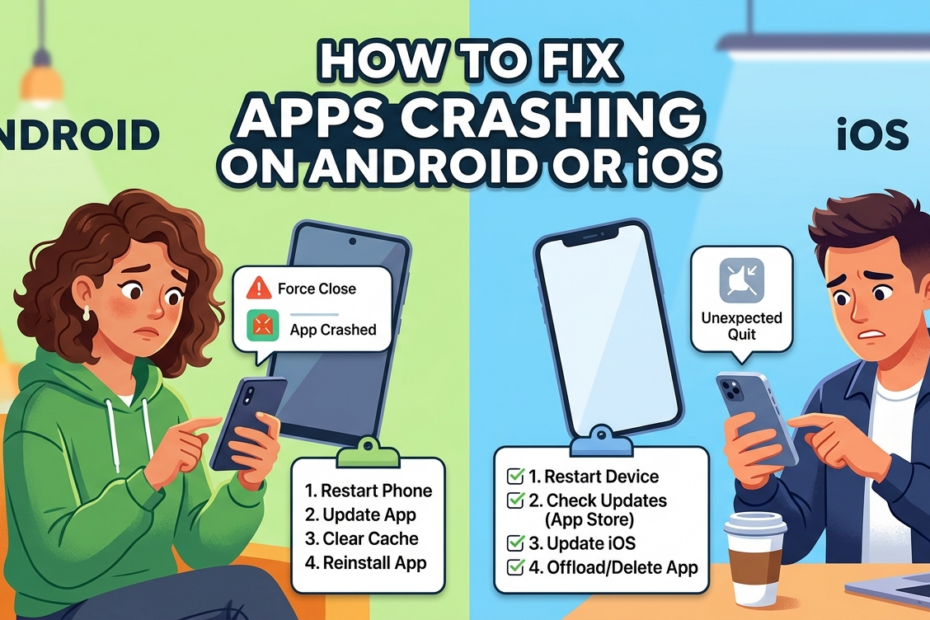
How to Fix Apps Crashing on Android
If apps on your Android device keep crashing, follow these step-by-step solutions to fix the problem effectively.
1. Clear App Cache and Data
Over time, temporary files stored by apps can become corrupted, causing crashes. Clearing the cache or data often resolves the issue.
How to do it:
-
Open Settings on your Android device.
-
Go to Apps & notifications (or Apps on some devices).
-
Select the app that is crashing.
-
Tap Storage & cache.
-
Tap Clear Cache first. If the app still crashes, tap Clear Storage/Data.
Note: Clearing data may reset app settings or log you out, so back up important information if needed.
2. Update the App from Google Play Store
App developers release updates to fix bugs and improve stability. Running an outdated version can lead to frequent crashes.
How to update:
-
Open the Google Play Store.
-
Tap your profile icon > Manage apps & device > Updates available.
-
Find the app and tap Update.
Updating ensures you have the latest bug fixes and performance improvements.
3. Update Android System
An outdated Android OS can cause app incompatibility and crashes. Keeping your system updated improves overall stability.
How to update:
-
Open Settings.
-
Scroll down and tap System > System update.
-
Tap Check for updates and install if available.
Many app crashes occur because the app requires features or security patches only available in the latest OS version.
4. Reinstall the App
If clearing cache and updating doesn’t work, reinstalling the app can remove corrupted files and reset the app environment.
How to reinstall:
-
Press and hold the app icon and select Uninstall.
-
Open Google Play Store, search for the app, and tap Install.
This is useful for apps that crash immediately on launch or after major updates.
5. Check App Permissions
Some apps crash when they lack the necessary permissions to function properly. For example, a camera app may crash if it cannot access the camera.
How to check permissions:
-
Open Settings > Apps & notifications > Select the app.
-
Tap Permissions.
-
Ensure all required permissions are allowed.
Granting the correct permissions can prevent unexpected app closures and improve overall functionality.
How to Fix Apps Crashing on iPhone (iOS)
If apps on your iPhone keep crashing, the following step-by-step solutions can help restore smooth performance.
1. Force Close and Reopen the App
Sometimes, apps get stuck due to temporary glitches. Force closing and reopening them often fixes the issue.
How to do it:
-
iPhone X and later: Swipe up from the bottom of the screen and pause in the middle. Find the app and swipe it up to close.
-
iPhone 8 or earlier: Double-click the Home button to see open apps, then swipe the app up to close.
After closing, reopen the app to see if it works properly.
2. Update the App from App Store
App developers release updates that fix bugs, improve stability, and enhance performance. Running an outdated version may cause repeated crashes.
How to update:
-
Open the App Store.
-
Tap your profile icon at the top right.
-
Scroll down to see pending updates.
-
Tap Update next to the crashing app.
Keeping apps updated ensures you benefit from the latest performance patches and bug fixes.
3. Update iOS Version
An outdated iOS version can create compatibility issues with newer app versions. Updating iOS improves stability and resolves system-level conflicts.
How to update:
-
Open Settings > General > Software Update.
-
Tap Download and Install if an update is available.
Many app crashes happen because the app requires features or security updates available only in the latest iOS version.
4. Reset App Settings (if needed)
If an app continues to crash after updates, resetting its settings can help without affecting your personal data.
How to reset:
-
Some apps have an internal Reset Settings option in their menu. Use it if available.
-
Avoid system-wide resets unless absolutely necessary, as these can erase personal data.
This method is safe when done within the app itself and often resolves configuration-related crashes.
5. Reinstall the App
Reinstalling removes corrupted files and gives the app a fresh start, often solving persistent crashes.
How to reinstall safely:
-
Press and hold the app icon, then select Delete App.
-
Open the App Store, search for the app, and tap Install.
Reinstalling is safe and does not affect other apps or your device. Make sure you have login details if the app requires them.
Advanced Solutions if Apps Still Crash
If apps continue to crash after trying basic and standard fixes, these advanced solutions can help. They address deeper system or device-level issues, increasing the authority and depth of your troubleshooting guide.
1. Reset Network Settings
Network conflicts or corrupted settings can cause apps that rely on the internet to crash frequently. Resetting network settings can solve these issues.
How to reset:
-
Android:
-
Open Settings > System > Reset options > Reset Wi-Fi, mobile & Bluetooth.
-
Confirm to reset.
-
-
iOS:
-
Open Settings > General > Transfer or Reset iPhone > Reset > Reset Network Settings.
-
Confirm.
-
Note: This will remove saved Wi-Fi passwords, Bluetooth connections, and VPN settings, so reconnect afterward.
2. Check Battery Health (iOS)
On iPhones, poor battery health can affect system performance and cause apps to crash unexpectedly.
How to check:
-
Open Settings > Battery > Battery Health & Charging.
-
If Maximum Capacity is low or Peak Performance Capability shows an issue, apps may crash due to throttled performance.
If battery health is severely degraded, consider getting it serviced to restore stability.
3. Disable Battery Optimization (Android)
Android devices sometimes close apps automatically to save battery, causing crashes in apps that run in the background.
How to disable:
-
Open Settings > Apps & notifications > Select the app.
-
Tap Battery > Battery optimization.
-
Choose Don’t optimize for the crashing app.
This ensures the app can run in the background without being killed by the system.
4. Factory Reset (Last Resort Only)
If all other solutions fail, a factory reset can fix persistent crashes caused by deep system corruption.
How to reset safely:
-
Android: Settings > System > Reset options > Erase all data (factory reset).
-
iOS: Settings > General > Transfer or Reset iPhone > Erase All Content and Settings.
Warning: This will erase all data on the device. Backup important files, photos, and app data before proceeding. Use this only if other fixes do not work.
How to Prevent Apps from Crashing in the Future
Preventing app crashes is always better than fixing them repeatedly. By following these best practices, you can keep your Android or iOS device running smoothly and reduce frustration.
1. Keep Apps and OS Updated
Regular updates bring bug fixes, performance improvements, and compatibility patches. Always update your apps via the Google Play Store or App Store, and keep your Android or iOS system up to date. This prevents crashes caused by outdated software.
2. Avoid Installing Apps from Unknown Sources
Apps from unofficial or untrusted sources can contain bugs or malware that crash your phone or apps. Only download apps from the Google Play Store (Android) or App Store (iOS) to ensure safety and stability.
3. Maintain at Least 15–20% Free Storage
Apps need storage for temporary files, updates, and smooth operation. Keeping at least 15–20% of your device’s storage free prevents crashes due to low space and ensures better overall performance.
4. Restart Your Phone Weekly
Restarting your device clears memory, stops background processes, and resolves minor system glitches. Doing this weekly helps apps run smoothly and reduces random crashes.
5. Avoid Task Killer Apps
Task killer or “RAM booster” apps may force-close background apps, which can actually cause more crashes rather than prevent them. Modern Android and iOS systems manage memory efficiently, so these apps are unnecessary and often harmful.
Following these preventive measures will reduce app crashes, improve device performance, and make your phone more reliable over time.
When to Contact App Support or Phone Manufacturer
Sometimes, even after trying all fixes, apps may continue to crash. In these cases, it’s important to know when to seek professional help. Understanding the signs can save time and prevent frustration.
1. App-Specific Bugs
If only one particular app keeps crashing while others work fine, the problem is likely specific to that app. Signs include:
-
The app crashes immediately after opening.
-
Crashes occur only after a recent update of the app.
-
Other users report the same issue in reviews or forums.
What to do:
-
Contact the app’s support team via the App Store or Google Play Store listing.
-
Provide details about your device, OS version, and the steps that cause the crash.
App developers can often fix the problem in the next update or provide a workaround.
2. Hardware Problems
If multiple apps or even system features crash, the issue may be related to your phone’s hardware. Signs include:
-
Frequent app crashes across different apps.
-
System instability, random restarts, or freezing.
-
Overheating, battery swelling, or unusual noises.
What to do:
-
Contact the phone manufacturer or visit an authorized service center.
-
Provide a detailed description of the issue and steps already taken to troubleshoot.
Hardware issues may require repairs, battery replacement, or other professional interventions.
Recognizing the difference between app-specific and hardware-related crashes helps you get the right support faster, minimizing downtime and frustration.
Frequently Asked Questions (FAQ)
Why does one app keep crashing
When a single application repeatedly crashes, it is usually a sign that something specific to that app is not functioning correctly rather than a problem with your entire device. One of the most common causes is corrupted data or cache. Apps store temporary files to improve speed and performance, but when these files become damaged or outdated, they can interfere with normal operation and lead to crashes.
Another major reason is software incompatibility. If the app was designed for a different version of your operating system, or if your device has recently been updated, the app may struggle to run properly. Developers often release updates to fix such issues, but if you are using an outdated version of the app, it might not be fully compatible with your current system.
Bugs within the app itself are also a frequent cause. Even well-developed apps can have coding errors that only appear under certain conditions. These bugs may cause the app to freeze, close unexpectedly, or behave unpredictably. In such cases, the issue is not on your end, and the best solution is usually to wait for the developer to release a fix.
Insufficient device resources can also trigger crashes. If your phone or computer is running too many apps at once, it may run out of memory (RAM), causing the system to force close the app. Similarly, background processes or heavy multitasking can put extra strain on your device.
Permissions and settings may also play a role. If an app requires access to certain features like storage, camera, or location and those permissions are denied, it may fail to function properly and crash. Additionally, conflicts with other installed apps or system settings can interfere with its performance.
In summary, a single app crashing repeatedly is usually due to internal issues such as corrupted data, bugs, compatibility problems, or limited device resources. Identifying the exact cause may require troubleshooting steps like clearing cache, updating the app, or checking device settings.
Can low storage cause apps to crash
Yes, low storage can definitely cause apps to crash, and it is a more common issue than many people realize. When your device runs out of available storage space, it affects how apps operate because they rely on that space for temporary files, updates, and smooth processing.
Every app needs a certain amount of free space to function properly. This space is used for caching data, storing user preferences, and handling background tasks. When storage is nearly full, the system cannot allocate enough room for these operations, which can lead to performance issues such as freezing, lagging, or crashing.
Operating systems also require free storage to manage essential processes. For example, your device may need space to create temporary system files or handle updates. If there is no available space, even basic functions can become unstable, and apps may start closing unexpectedly.
Another important factor is app updates. When storage is low, updates may fail to install correctly, leaving apps in a partially updated or corrupted state. This can cause them to malfunction or crash frequently. In some cases, the system may even prevent apps from launching if there is insufficient space.
Low storage can also impact memory management. While storage and RAM are different, they work together to ensure smooth performance. When storage is full, the system may struggle to manage memory efficiently, increasing the likelihood of app crashes.
To prevent these issues, it is important to regularly free up space by deleting unused apps, clearing cache, removing duplicate files, or transferring media to external storage or cloud services. Keeping a reasonable amount of free space ensures that both your apps and your device can operate smoothly.
Overall, low storage is a significant factor that can lead to app crashes, slow performance, and general instability, making it essential to maintain adequate free space on your device.
Is reinstalling apps safe
Reinstalling apps is generally safe and is often recommended as an effective troubleshooting step when an app is not working properly. The process involves removing the app from your device and then downloading it again from a trusted source, such as an official app store. This can help resolve many issues, including crashes, glitches, and performance problems.
One of the main benefits of reinstalling an app is that it clears out corrupted files and resets the app to its original state. Over time, apps accumulate data such as cache, settings, and temporary files. If any of this data becomes damaged, it can cause the app to malfunction. Reinstalling removes these problematic files and replaces them with fresh, clean ones.
Reinstallation is also useful when an app update does not install correctly. Sometimes updates can introduce bugs or fail midway, leaving the app unstable. By uninstalling and reinstalling, you ensure that the latest version is installed properly.
However, there are a few things to keep in mind. First, uninstalling an app may delete its local data, such as saved settings or offline content. If the app does not back up data to the cloud, you could lose important information. It is always a good idea to check whether your data is synced or backed up before reinstalling.
Security is another consideration. Reinstalling is safe as long as you download the app from a legitimate and trusted source. Avoid installing apps from unknown websites, as they may contain malware or harmful software.
In addition, reinstalling will not fix issues that are caused by external factors, such as system-wide bugs or hardware problems. In such cases, other solutions may be required.
Overall, reinstalling apps is a safe and effective way to fix many common issues, provided you take precautions to protect your data and download from trusted sources.
Why do apps crash after an update
Apps sometimes crash after an update due to a variety of reasons, most of which are related to compatibility and software changes. While updates are meant to improve performance, fix bugs, and add new features, they can occasionally introduce new problems.
One common reason is incompatibility between the updated app and your device’s operating system. If the update is designed for a newer system version, it may not work properly on older devices. This can lead to crashes, freezing, or other unexpected behavior.
Another factor is bugs introduced during the update. Software development is complex, and even minor changes in code can create new issues. These bugs may not have been detected during testing, especially if they only occur under specific conditions or on certain devices.
Corrupted installation is also a possibility. If the update process is interrupted or incomplete, the app may not install correctly. This can result in missing files or broken functionality, causing the app to crash frequently.
Changes in app settings or permissions can also play a role. Updates may reset certain configurations or require new permissions. If these are not properly set, the app may fail to function as expected.
Additionally, older cached data may conflict with the new version of the app. When an app is updated, it may still try to use old data that is no longer compatible, leading to errors and crashes. Clearing the app’s cache or reinstalling it can often resolve this issue.
Device limitations can also contribute. New updates may require more processing power, memory, or storage. If your device cannot meet these requirements, the app may struggle to run smoothly and crash more often.
In conclusion, app crashes after an update are usually caused by compatibility issues, bugs, incomplete installations, or conflicts with existing data. While frustrating, these problems are often temporary and can be resolved through updates, troubleshooting, or simple maintenance steps.