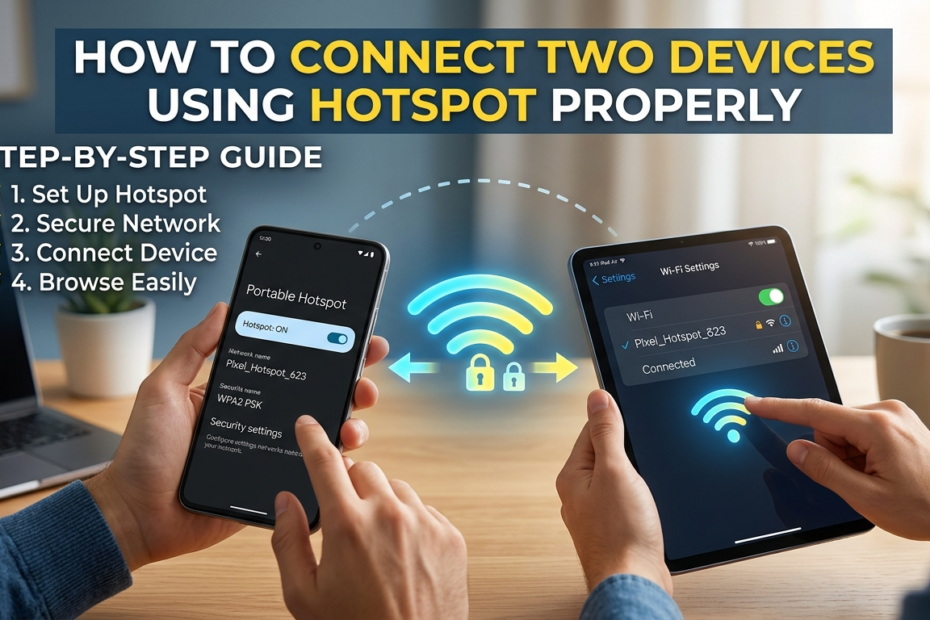
In today’s connected world, being able to share internet access between devices is more important than ever. Connecting two devices using hotspot is a simple and efficient solution for situations where Wi-Fi networks are unavailable.
Whether you need to connect your laptop to your phone’s mobile data for remote work, share internet with a friend while traveling, or enjoy online gaming on multiple devices, a properly set up hotspot ensures a stable and secure connection.
By understanding the correct steps and best practices, you can maximize speed, maintain security, and prevent common connectivity issues. This guide will walk you through everything you need to know to connect two devices using hotspot properly and effortlessly.
Check Device Compatibility
Before connecting two devices using hotspot, it’s important to ensure that both devices support hotspot functionality. Most modern smartphones, tablets, and computers are equipped to handle hotspot connections.
For example, Android and iOS devices allow you to share mobile data easily, while Windows and macOS laptops can connect to hotspots without any additional software. Tablets running iOS or Android also typically support hotspot connections, making it easy to share internet on the go.
To avoid connection issues, make sure both devices have the latest software updates installed. Updated software improves compatibility, boosts security, and ensures a smoother hotspot connection.
Whether you’re planning a hotspot connection between phone and laptop or connecting multiple devices via hotspot safely, checking compatibility first is essential for a stable and reliable experience.
Enable Hotspot on the Primary Device
Once you’ve confirmed device compatibility, the next step is to turn on the hotspot on your primary device. This allows your second device to connect and access the internet.
For Android devices:
-
Open Settings.
-
Go to Network & Internet.
-
Select Hotspot & Tethering.
-
Tap Wi-Fi hotspot and switch it On.
For iOS devices:
-
Open Settings.
-
Tap Personal Hotspot.
-
Toggle Allow Others to Join to On.
For both platforms, it’s highly recommended to enable password protection. Setting a strong password prevents unauthorized users from accessing your hotspot, keeps your data secure, and ensures a reliable connection. By properly configuring the hotspot, you can safely connect devices via hotspot without interruptions or security risks.
Connect the Second Device to the Hotspot
After enabling the hotspot on your primary device, it’s time to connect the second device so it can access the internet.
For another phone or tablet:
-
Open Wi-Fi settings on the device.
-
Look for your hotspot name in the list of available networks.
-
Select the hotspot and enter the password you set earlier.
For a laptop or desktop:
-
Open the Wi-Fi settings on your computer.
-
Locate the hotspot network from the available options.
-
Click Connect and enter the password.
Tips for a stable connection:
-
Keep both devices close to each other to maintain a strong signal.
-
Avoid interference from walls, electronic devices, or other Wi-Fi networks.
-
Limit the number of devices connected simultaneously if speed is slow.
Following these steps ensures a smooth and reliable hotspot connection between your devices, allowing you to connect devices via hotspot safely and efficiently.
Optimize Hotspot Performance
To get the best results when connecting two devices using hotspot, it’s important to optimize performance and maintain security.
-
Use a strong password: Protect your hotspot from unauthorized access by setting a complex password. This ensures only trusted devices can connect, keeping your data safe.
-
Manage data usage: Avoid running high-data apps such as video streaming or large downloads while multiple devices are connected, especially if your mobile data speed is limited.
-
Turn off hotspot when not in use: Keeping the hotspot on continuously drains battery and may slow down your device. Switch it off when it’s not needed to conserve power and improve overall device performance.
By following these simple tips, you can maintain a stable, secure, and efficient hotspot connection, making it easier to connect devices via hotspot safely and effectively.
Troubleshooting Common Issues
Even when you follow all the steps correctly, you may encounter occasional problems while connecting two devices using hotspot. Here’s how to fix the most common issues:
-
Device not showing hotspot: Make sure the hotspot is visible and broadcasting. Restart both devices to refresh network connections.
-
Slow internet speed: If your connection is sluggish, reduce the number of connected devices and check your mobile data strength. Weak signals can significantly affect performance.
-
Connection keeps dropping: Toggle the hotspot off and on again, or consider resetting network settings on the primary device to resolve persistent connection drops.
By addressing these issues promptly, you can maintain a reliable hotspot connection and continue to connect devices via hotspot safely and efficiently.
Conclusion
By following these steps, you can effortlessly connect two devices using hotspot properly, ensuring a secure and stable internet connection. From checking device compatibility and enabling the hotspot to connecting the second device and optimizing performance, each step helps prevent common issues and enhances reliability. Implement these best practices to enjoy smooth internet sharing, whether for work, gaming, or staying connected on the go.
Frequently Asked Questions
What are the disadvantages of hotspots
While mobile hotspots are convenient for sharing internet access, they come with several disadvantages. One primary concern is battery consumption. When you use your smartphone or tablet as a hotspot, it consumes significantly more power than normal usage because it must maintain a constant wireless signal for other devices. This can drain your battery rapidly, sometimes within a few hours, especially if multiple devices are connected.
Another limitation is data usage. Hotspots use your mobile data plan to provide internet access, which can quickly exhaust your allowance if multiple devices are connected or if high-bandwidth applications, such as video streaming or large downloads, are used. Some carriers charge extra fees if hotspot usage exceeds a certain limit, adding to potential costs.
Speed reduction is another disadvantage. The more devices connected to a hotspot, the slower the internet connection becomes for each device. This is because mobile networks have limited bandwidth, and hotspots divide that bandwidth among all connected devices. Additionally, factors like network congestion, distance from the cell tower, and device compatibility can further reduce performance.
Security risks also exist when using hotspots. If you don’t set a strong password or use encryption protocols like WPA2/WPA3, unauthorized users could connect to your hotspot, potentially compromising your data. Public hotspots, in particular, are prone to hacking, eavesdropping, and malware attacks.
Finally, prolonged hotspot usage can generate heat and device wear. Continuous operation can cause the device to become warm, potentially affecting long-term battery health and internal components. In summary, while hotspots offer flexibility, users must consider battery drain, data consumption, slower speeds, security vulnerabilities, and device strain.
How do I allow other devices to connect to my hotspot
Allowing other devices to connect to your mobile hotspot is simple. On Android, go to Settings → Network & Internet → Hotspot & Tethering → Wi-Fi Hotspot.
Turn on the hotspot, then configure it by setting a network name (SSID) and password to ensure security. Once the hotspot is active, other devices can search for available Wi-Fi networks, select your hotspot’s name, enter the password, and connect.
On iPhone, navigate to Settings → Personal Hotspot → Allow Others to Join, then toggle the option on. You can also set a password for security. Other devices can now detect the hotspot as a standard Wi-Fi network and connect using the password you provided.
To make the connection smoother, ensure that your mobile data is active and that you’re within good cellular coverage. For advanced setups, you can limit the number of connected devices in hotspot settings to avoid bandwidth issues.
How to use both Wi-Fi and hotspot together
Using both Wi-Fi and a hotspot simultaneously depends on the device and operating system. Generally, mobile devices automatically turn off Wi-Fi when you enable the hotspot because hotspot sharing relies on mobile data.
However, some Android devices and certain apps allow a feature called Wi-Fi sharing or repeater mode, where your phone connects to a Wi-Fi network and shares that connection with other devices.
To do this on Android, go to Settings → Network & Internet → Hotspot & Tethering → Wi-Fi Hotspot → Advanced → Share Wi-Fi. When enabled, your phone acts as a repeater, receiving Wi-Fi from one source and broadcasting it to others. iOS does not natively support Wi-Fi sharing while using the hotspot, so you must rely on mobile data to provide internet access.
This setup can be useful when your mobile data is limited or slow, and you want to extend the reach of an existing Wi-Fi network without additional hardware. However, it may reduce speed for connected devices due to signal duplication and increased device workload.
How to share mobile data between two phones
Sharing mobile data between two phones can be done using a hotspot, Bluetooth tethering, or USB tethering. The most common method is Wi-Fi hotspot. On the phone with data, enable the hotspot and configure the network name and password. On the second phone, open Wi-Fi settings, search for the hotspot, and connect using the password.
Alternatively, you can use Bluetooth tethering. Enable Bluetooth on both devices, pair them, then turn on Bluetooth tethering on the phone with mobile data. The second phone can connect via Bluetooth and access the internet.
For USB tethering, connect the two phones with a compatible USB cable. On the phone with data, enable USB tethering in the hotspot or network settings. The second phone will detect the connection as a wired network and use the first phone’s mobile data. Each method has its advantages: Wi-Fi is faster for multiple devices, Bluetooth uses less battery, and USB provides the most stable connection.
How to connect hotspot to 2 devices
Connecting a hotspot to two devices is similar to connecting one device but requires checking your hotspot’s maximum device limit. Most modern smartphones allow 5–10 devices to connect simultaneously. To connect two devices, enable your hotspot, then on the first device, search for the network and enter the password. Repeat the process on the second device.
Ensure your mobile data plan can handle the combined usage of both devices, as running two connections simultaneously may reduce speed or increase data consumption.
Some devices allow you to prioritize one device over another to manage bandwidth effectively. Always use a strong password to secure your hotspot, preventing unauthorized users from joining and affecting performance.
How to connect devices using a hotspot
Connecting devices using a mobile hotspot is a straightforward process, but it requires a few steps to ensure a secure and stable connection. First, you need to activate the hotspot feature on the device that has mobile data.
On Android, navigate to Settings → Network & Internet → Hotspot & Tethering → Wi-Fi Hotspot, then toggle it on. You can configure the hotspot by setting a network name (SSID) and a strong password to prevent unauthorized access. On iPhone, go to Settings → Personal Hotspot → Allow Others to Join, then set a password if required.
Once the hotspot is active, the other devices—whether smartphones, tablets, laptops, or gaming consoles—can connect as they would to any Wi-Fi network. On each device, open Wi-Fi settings, look for the hotspot network name, select it, and enter the password. Once authenticated, the device will use the host phone’s mobile data to access the internet.
It’s important to keep a few things in mind. Limit the number of connected devices to maintain stable speed, as more devices sharing the same hotspot will divide available bandwidth.
Additionally, ensure the host device has sufficient battery life, as hotspot usage can drain it quickly. For prolonged connections, keeping the host device plugged into a charger is recommended.
Using security features like WPA2/WPA3 encryption is critical to prevent unauthorized access. Advanced users can also adjust settings like maximum connections or data usage limits through the hotspot menu to optimize performance.
This method works across multiple device types, from Android phones connecting to iPhones to laptops connecting to tablets. By properly configuring the hotspot, ensuring security, and managing connected devices, you can create a reliable network to share mobile data wherever Wi-Fi is unavailable.
Is it better to use Wi-Fi or hotspot
Whether it’s better to use Wi-Fi or a hotspot depends on your priorities for speed, data consumption, security, and convenience. Wi-Fi, typically from a home or public router, tends to offer faster, more stable connections compared to mobile hotspots.
Wi-Fi networks generally have higher bandwidth and can support multiple devices simultaneously without significant speed drops. Additionally, Wi-Fi does not consume mobile data, making it a cost-effective solution for heavy internet usage like streaming, video calls, or large downloads.
On the other hand, a hotspot provides mobility and flexibility, allowing internet access wherever there’s cellular coverage. It is ideal for temporary setups, remote areas, or situations where Wi-Fi is unavailable.
However, hotspots rely on mobile data, which may have limits, and connection speeds can fluctuate based on network strength and the number of devices connected.
Security is another consideration. Public Wi-Fi networks can be vulnerable to attacks unless secured with a VPN, whereas a hotspot with a strong password is generally more secure because it limits access to authorized users only. Battery usage is also a factor: hotspot usage significantly drains the host device’s battery, while Wi-Fi does not affect device power as severely.
Ultimately, for long-term, high-bandwidth usage, Wi-Fi is better. For mobility, flexibility, or emergency internet access, a hotspot is the more practical option. Often, a combination of both, such as using Wi-Fi at home and a hotspot while traveling, provides the best balance between convenience and performance.
How long will 2 GB of hotspot last
The duration 2 GB of hotspot data will last depends on what activities the connected devices are performing. Basic activities like web browsing, social media scrolling, and messaging consume relatively little data—roughly 150–200 MB per hour. Using this estimate, 2 GB of data could last around 10–12 hours for light usage across one or two devices.
Streaming video or music consumes data much faster. For example, streaming a standard-definition video typically uses about 700 MB per hour, while high-definition video can consume 2–3 GB per hour.
This means that 2 GB of hotspot data could last less than an hour if you’re streaming HD videos. Online gaming varies depending on the game, but it usually consumes about 50–150 MB per hour, making 2 GB sufficient for 10–40 hours of gaming depending on the intensity of online interactions.
Downloading files, software updates, or using video conferencing applications like Zoom or Teams will also drain the data quickly. Video calls can consume 500 MB to 1 GB per hour, meaning 2 GB would last only 2–4 hours for continuous calls.
To extend hotspot usage, monitor connected devices and avoid high-bandwidth activities. Many smartphones and third-party apps allow you to track data usage in real-time, providing alerts when you approach your limit. Using data-saving modes or compressing video streaming quality can also help make 2 GB last longer.
Can hotspot damage a phone
Using a mobile hotspot does not permanently damage a phone, but it can cause temporary strain if used extensively. One of the main effects is battery stress, as maintaining a hotspot connection requires constant wireless transmission, which can significantly drain the battery. Prolonged hotspot usage without charging can shorten the battery’s lifespan over time due to repeated deep discharges.
Another concern is overheating. Continuous hotspot usage generates heat, especially if multiple devices are connected or the phone is charging simultaneously. Overheating may cause the device to throttle performance temporarily or, in extreme cases, trigger automatic shutdowns to protect hardware. Long-term overheating can affect internal components like the battery or processor.
Additionally, heavy hotspot use can increase data plan costs, but this is more of a financial strain than physical damage. To minimize risks, it’s best to keep the phone in a ventilated area, use it while plugged in, and avoid using the hotspot for long periods without breaks.
Using a reputable case that doesn’t trap heat can also reduce the risk of overheating. Overall, while hotspot use stresses the device, it will not directly cause permanent damage if used responsibly.
Can I use a hotspot while the Wi-Fi is on
Generally, most smartphones cannot use Wi-Fi and mobile hotspot simultaneously. This is because enabling a hotspot typically disables Wi-Fi, as the hotspot relies on mobile data to share the internet.
When the phone attempts to connect to a Wi-Fi network while simultaneously running a hotspot, the system cannot route data correctly, so the hotspot switches off automatically on most devices.
Some Android devices offer a feature called Wi-Fi sharing or repeater mode, which allows a phone to connect to a Wi-Fi network and share that connection as a hotspot. This effectively turns your phone into a bridge, letting other devices use the same Wi-Fi through your phone. However, this feature is not widely available on iPhones, where hotspot sharing requires mobile data.
Even when Wi-Fi sharing is possible, it may reduce internet speed because the device is simultaneously receiving and transmitting data. Battery usage will also increase. The safest approach is to use the hotspot with mobile data for external sharing or rely on the existing Wi-Fi network for direct device connections.
Why is the hotspot not working while the Wi-Fi is on
A mobile hotspot may not work while Wi-Fi is on because of how smartphones manage internet connections. Most devices cannot simultaneously use Wi-Fi and act as a hotspot because the hotspot function shares the phone’s mobile data connection, not a Wi-Fi network.
When Wi-Fi is enabled, the device attempts to route data through the Wi-Fi connection instead of mobile data, creating a conflict that prevents the hotspot from functioning.
Some Android devices provide a feature called Wi-Fi sharing or repeater mode, which allows the phone to connect to a Wi-Fi network and rebroadcast it as a hotspot.
This feature is not available on all phones and is generally absent on iPhones, which require mobile data for hotspot functionality. Without this feature, enabling Wi-Fi while running a hotspot will either disable the hotspot automatically or prevent connected devices from accessing the internet.
Other factors can also interfere with hotspot functionality. Network restrictions from your carrier, outdated firmware, or device-specific limitations may prevent simultaneous Wi-Fi and hotspot usage.
To resolve this, you can either turn off Wi-Fi and rely on mobile data for hotspot sharing or check if your device supports Wi-Fi repeater functionality. For prolonged usage, using mobile data ensures the hotspot remains stable and accessible to other devices.
Can someone mirror my Android phone to another phone
Yes, someone can mirror your Android phone to another device, but it typically requires explicit permission or setup from your side. Android supports screen sharing and mirroring through apps such as Google Home, TeamViewer, AirDroid, or AnyDesk.
For mirroring to occur, both devices usually need to be connected to the same Wi-Fi network or paired via a hotspot, and you must grant access on the source device.
Unauthorized mirroring is difficult without physical access or malicious software installed on your phone. However, phishing attacks, malware, or rogue apps can compromise your device and allow remote viewing of your screen.
Therefore, it’s crucial to install apps only from trusted sources, avoid clicking suspicious links, and keep your device updated with the latest security patches. Using strong passwords and enabling two-factor authentication for connected accounts further prevents unauthorized mirroring attempts.
Screen mirroring can be practical for presentations, collaborative work, or sharing media, but it’s important to manage permissions carefully.
Apps like Google Home require you to choose a target device for casting, and TeamViewer or AnyDesk require you to accept incoming connections actively. Without your consent, mirroring is generally not possible, making Android devices relatively secure against unwanted screen sharing.
How much data does a hotspot use
The amount of data a hotspot uses depends entirely on the type of activity performed on connected devices. Basic tasks like web browsing or checking emails consume relatively little data, about 100–200 MB per hour. Social media usage, which often loads images and videos, can use roughly 200–300 MB per hour.
Streaming music consumes moderate data, around 40–150 MB per hour, depending on audio quality. Streaming video is far more data-intensive: standard-definition video consumes about 700 MB per hour, while high-definition video can use 2–3 GB per hour.
Video calls or conferencing apps like Zoom or Google Meet are also heavy users, consuming 500 MB to 1 GB per hour. Downloading large files, games, or software updates can quickly deplete your hotspot allowance in minutes.
The number of devices connected also impacts total data consumption. Each additional device divides available bandwidth and increases overall data usage. Monitoring usage through your phone settings or third-party apps helps avoid exceeding your mobile data plan. Using features like data saver modes or limiting background activity can make your hotspot more efficient and stretch your data further.
How to share mobile data without a hotspot
You can share mobile data without a hotspot using USB tethering, Bluetooth tethering, or direct cable connections. USB tethering involves connecting your phone to another device using a compatible USB cable and enabling USB tethering in your phone’s settings. The second device detects the phone as a wired internet source and uses its mobile data for connectivity.
Bluetooth tethering allows two devices to connect wirelessly without using Wi-Fi. After pairing the devices via Bluetooth, you enable Bluetooth tethering on the source phone, and the other device can access the internet over this connection. While slower than Wi-Fi, Bluetooth tethering consumes less battery and is suitable for light internet usage.
Some third-party apps also allow internet sharing over local networks, providing flexible alternatives without relying on a hotspot. These methods are useful when hotspot use is not feasible or when you need to share data with a single device efficiently.
How to share mobile data to another mobile with hotspot
Sharing mobile data via a hotspot is the most common and straightforward method. On Android, navigate to Settings → Network & Internet → Hotspot & Tethering → Wi-Fi Hotspot.
Turn on the hotspot and configure a network name (SSID) and password. On the second mobile device, go to Wi-Fi settings, search for the hotspot name, enter the password, and connect.
On iPhone, go to Settings → Personal Hotspot → Allow Others to Join, then set a password. The other device can then detect the hotspot like a standard Wi-Fi network and connect securely.
For stable performance, ensure the host device has good mobile data coverage, sufficient battery, and limits the number of connected devices if necessary. Using a strong password prevents unauthorized access and keeps your data secure. Hotspot sharing allows multiple devices to access mobile data simultaneously, making it an ideal solution when Wi-Fi is unavailable.