Skip to content
Home » How to connect Bluetooth headphones when they won’t pair

How to connect Bluetooth headphones when they won’t pair

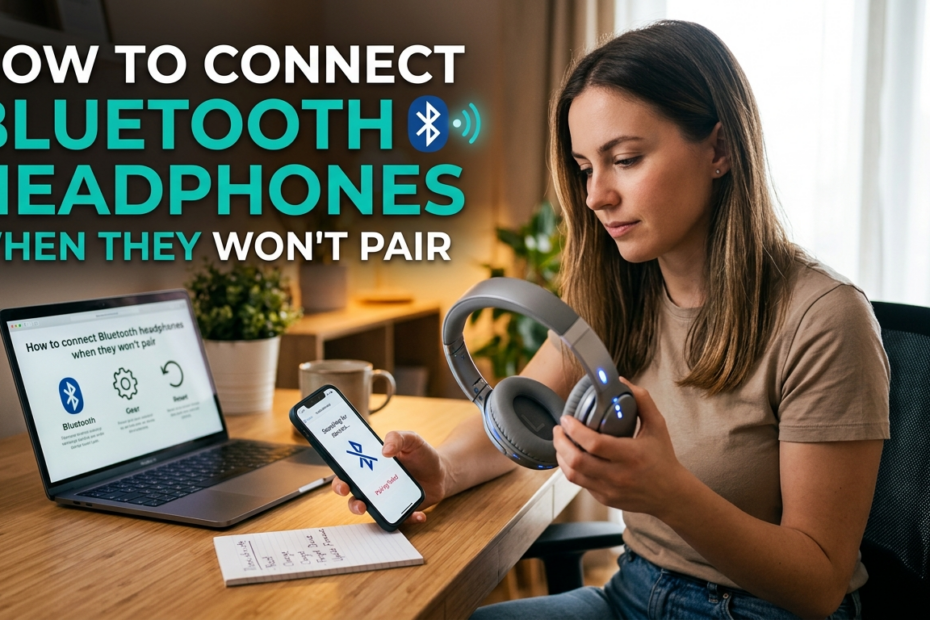
    Bluetooth headphones refusing to pair is a very common problem that affects users across all types of devices, including Android phones, iPhones, Windows PCs, and MacBooks. You may turn on Bluetooth expecting a quick connection, only to find that your headphones do not appear, fail to connect, or disconnect repeatedly.

    This issue can be especially frustrating when you need your headphones urgently for calls, work, gaming, or entertainment. In most cases, the problem is not caused by faulty hardware but by simple pairing conflicts, settings errors, or software-related issues.

    The good news is that these problems are usually easy to fix without technical expertise. In this article, you will learn how to connect Bluetooth headphones when they won’t pair by following practical, tested solutions that work across multiple devices. Each step is designed to help you restore a stable Bluetooth connection quickly and effectively.

    Common Reasons Bluetooth Headphones Won’t Pair

    When Bluetooth headphones refuse to connect, the issue is often caused by one or more common factors rather than a hardware fault. One frequent reason is that the headphones are not placed in pairing mode. If pairing mode is not activated correctly, your device will not detect them.

    Another common cause is an existing connection to another phone, tablet, or computer. Bluetooth headphones typically connect to only one device at a time, which can block new pairing attempts.

    Outdated software is also a major contributor to Bluetooth pairing issues. Older operating systems or firmware may contain bugs that interfere with wireless connections.

    Low battery levels can prevent Bluetooth headphones from entering pairing mode or maintaining a stable connection. Additionally, interference from nearby wireless devices, such as Wi-Fi routers, smart TVs, or other Bluetooth accessories, can disrupt the pairing process. Identifying these causes makes it easier to apply the right solution quickly.

    How to Connect Bluetooth Headphones When They Won’t Pair (General Fixes)

    If your Bluetooth headphones are not connecting, try the following general fixes in order. These steps resolve most pairing issues across different devices.

    Put the Headphones in Pairing Mode

    Pairing mode allows your headphones to become discoverable by nearby devices. If pairing mode is not activated, your phone or computer will not detect the headphones. Usually, this involves pressing and holding the power or Bluetooth button until a flashing light appears or you hear a prompt. Always check that pairing mode is active before attempting to connect.

    Turn Bluetooth Off and On Again

    Turning Bluetooth off and then back on refreshes the wireless connection. This simple reset clears temporary glitches that may prevent devices from communicating properly and often restores normal pairing behavior.

    Forget the Device and Re-Pair

    If your device has previously connected to the headphones, stored pairing data can cause conflicts. Forgetting or removing the headphones from Bluetooth settings deletes old connection information, allowing you to start a clean pairing process.

    Restart Both Devices

    Restarting your phone, computer, and headphones resets background services, including Bluetooth processes. This helps eliminate software errors that may interfere with pairing.

    Charge Your Headphones

    Low battery levels can prevent Bluetooth headphones from entering pairing mode or maintaining a stable connection. Fully charging the headphones ensures they function properly during pairing.

    Device-Specific Solutions

    If general troubleshooting does not resolve the issue, device-specific fixes can help address Bluetooth pairing problems more effectively. Different operating systems manage Bluetooth connections in unique ways, so applying the correct solution for your device is essential.

    Fix Bluetooth Pairing Issues on Android

    On Android devices, Bluetooth problems are often caused by corrupted cache data or network conflicts. Clearing the Bluetooth cache removes temporary files that may interfere with pairing. Resetting network settings can also help by restoring Bluetooth, Wi-Fi, and mobile data configurations to their default state. Additionally, updating your Android version ensures you have the latest bug fixes and performance improvements that may resolve Bluetooth connection issues.

    Fix Bluetooth Headphones Not Pairing on iPhone

    For iPhone users, resetting Bluetooth settings can clear hidden pairing errors. Ensure that Airplane Mode is turned off, as it disables wireless connections, including Bluetooth. Keeping iOS updated is equally important, since system updates often include fixes for Bluetooth stability and compatibility issues.

    Fix Bluetooth Headphones Not Connecting on Windows

    On Windows computers, running the built-in Bluetooth troubleshooter can automatically detect and fix common connection problems. Updating Bluetooth drivers helps ensure compatibility with newer devices. Removing duplicate or unused Bluetooth devices from settings can also prevent connection conflicts.

    Fix Bluetooth Pairing Issues on Mac

    Mac Bluetooth issues can often be resolved by resetting the Bluetooth module, which refreshes all wireless connections. Removing old or unused paired devices reduces interference and connection errors. Restarting core Bluetooth services or simply rebooting the Mac helps clear background processes that may be blocking successful pairing.

    When Nothing Works — Advanced Troubleshooting

    If your Bluetooth headphones still will not pair after trying the standard and device-specific fixes, advanced troubleshooting may be necessary. These steps help determine whether the issue is caused by software, settings, or the headphones themselves.

    A factory reset restores the headphones to their original settings, removing all saved Bluetooth connections and configuration errors. This is often the most effective solution for persistent pairing problems.

    Check the manufacturer’s official app, if available, as it may provide firmware updates, connection diagnostics, or guided pairing instructions specific to your model.

    Outdated firmware can prevent proper Bluetooth communication. Finally, test the headphones with another phone, tablet, or computer. If they connect successfully, the issue is likely with the original device’s settings. If they still fail to pair, the headphones may require professional repair or replacement.

    How to Prevent Bluetooth Pairing Problems in the Future

    Preventing Bluetooth pairing issues is often easier than fixing them. One effective practice is to properly disconnect your Bluetooth headphones before switching to another device.

    This ensures the headphones are not still actively linked to a previous connection, which can block new pairing attempts. Keeping your headphones’ firmware and your device’s operating system up to date is equally important, as updates frequently include improvements to Bluetooth performance and compatibility.

    Additionally, avoid pairing your headphones with multiple devices at the same time unless they specifically support multi-device connectivity. Too many saved or active connections can create conflicts that lead to pairing failures.

    It is also helpful to periodically remove unused Bluetooth devices from your settings to keep connections clean and stable. By following these preventive measures, you can significantly reduce the chances of experiencing Bluetooth pairing problems in the future.

    Final Thoughts

    Bluetooth pairing issues can be frustrating, but they are usually easy to resolve with the right approach. In most cases, problems occur due to simple factors such as pairing mode errors, connection conflicts, outdated software, or low battery levels.

    By following the step-by-step fixes and device-specific solutions outlined in this guide, you can quickly restore a stable connection between your Bluetooth headphones and your device. If the issue persists, advanced troubleshooting helps identify whether the problem lies with the settings or the headphones themselves.

    Apply these solutions methodically, and you should be able to reconnect your headphones without unnecessary stress. Taking preventive steps going forward will also help you avoid similar pairing problems in the future.

    See also  How to Diversify investment in Nigeria

    Frequently Asked Questions

    How do you fix Bluetooth headphones not pairing?

    Fixing Bluetooth headphones that won’t pair begins with understanding the common causes of connection failure. Often, the problem is not hardware-related but arises from software conflicts, device settings, or simple oversights such as the headphones not being in pairing mode.

    The first step is to ensure that your headphones are fully charged, as low battery levels can prevent them from entering pairing mode or maintaining a stable connection.

    Next, activate pairing mode according to the manufacturer’s instructions—this typically involves holding down the power or Bluetooth button until an LED indicator flashes or an audio prompt signals readiness.

    On your device, whether it is a smartphone, tablet, or computer, turn Bluetooth off and on to refresh the wireless connection. If the headphones had been previously paired, remove them from the list of saved devices to clear any old pairing data that might cause conflicts. Restarting both your device and the headphones can also help reset the Bluetooth system and eliminate temporary software glitches.

    For device-specific issues, ensure that your operating system or device firmware is up to date, as updates often include improvements to Bluetooth stability and compatibility.

    If interference from other nearby wireless devices is suspected, move to a location with minimal electronic congestion or disable other active Bluetooth connections.

    For persistent problems, performing a factory reset on the headphones or testing them with another device can help determine whether the issue lies with the headphones or the device. Following this structured approach typically resolves most pairing failures efficiently.

    How do I force my headphones into pairing mode?

    Forcing Bluetooth headphones into pairing mode is often necessary when they fail to connect automatically. Most headphones have a dedicated power or Bluetooth button that must be pressed and held for a specific duration—usually between three to ten seconds—until an LED indicator begins to flash or a voice prompt announces pairing mode.

    The flashing light is a visual cue that the headphones are discoverable by other devices. Some models may require holding multiple buttons simultaneously, so consulting the user manual or manufacturer instructions is essential.

    If your headphones are already connected to another device, disconnect or power off the original device before attempting to force pairing. This avoids connection conflicts that may prevent the headphones from entering pairing mode.

    In some cases, headphones with touch controls require swiping or tapping patterns rather than physical button presses. Understanding the specific method for your model ensures the process is effective.

    Additionally, ensure the headphones are sufficiently charged. Low battery can prevent them from entering pairing mode properly. Once in pairing mode, immediately attempt to connect from your device to reduce the chance of the headphones timing out or returning to standby mode.

    If repeated attempts fail, a factory reset of the headphones often restores their ability to enter pairing mode reliably, clearing any previous configuration errors.

    Why won’t my phone detect my headphones?

    A phone may fail to detect Bluetooth headphones due to multiple factors, ranging from software issues to device interference. One of the most common reasons is that the headphones are not in pairing mode.

    Without this, the phone cannot identify or list the headphones in available devices. Ensuring the headphones are fully charged and correctly in pairing mode is the first step.

    Software issues on the phone itself can also prevent detection. Older operating systems, corrupted Bluetooth cache, or temporary system glitches may block discovery.

    Restarting the phone, updating the OS, or clearing the Bluetooth cache on Android devices can resolve such issues. Another frequent cause is interference from nearby devices. If multiple Bluetooth devices are active or there is strong Wi-Fi or electronic interference, the phone may struggle to detect the headphones.

    Previous pairing conflicts can also be the culprit. If the headphones are still connected to another device, the phone may not see them. Removing or disconnecting the headphones from other devices ensures the connection is free.

    Finally, hardware problems in either the phone or headphones, though less common, can prevent detection. Testing the headphones with another phone or the phone with a different pair of headphones can help isolate the source of the issue and guide further troubleshooting.

    What to do when Bluetooth fails to connect?

    When Bluetooth fails to connect, a structured troubleshooting approach is necessary to resolve the issue efficiently. Begin by checking the most basic aspects: ensure both devices have sufficient battery, are in range, and that Bluetooth is enabled on both devices. Devices typically need to be within a 30-foot radius without major physical obstructions for reliable connections.

    Next, verify that the device attempting to connect is in pairing mode and not already linked to another device, as simultaneous connections may prevent new pairings.

    Restarting both devices is a simple yet effective step, as it resets temporary software or communication errors. On smartphones and computers, forgetting the Bluetooth device and attempting to re-pair it often clears configuration conflicts stored in memory.

    Device-specific actions can also be helpful. Updating operating systems, firmware, and Bluetooth drivers ensures compatibility with modern devices and reduces software-related errors.

    If interference is suspected, move away from other active wireless devices or disable unnecessary Bluetooth connections. For persistent failures, performing a factory reset on the Bluetooth headphones or testing connections with another device helps determine whether the problem is hardware-related or software-based. By following this methodical process, most Bluetooth connection failures can be resolved without professional repair.

    Why is my pairing unsuccessful?

    Pairing can be unsuccessful for several reasons, usually related to either device settings, Bluetooth conflicts, or technical limitations. One frequent reason is that one or both devices are not in pairing mode or are not discoverable.

    Without proper pairing mode, devices cannot detect or communicate with each other. Another common factor is interference from other wireless devices in the vicinity. Active Bluetooth devices, Wi-Fi routers, and even certain electronics can disrupt pairing signals.

    Low battery levels also contribute to unsuccessful pairing. Headphones with insufficient charge may fail to enter pairing mode or maintain a connection, while phones with very low battery may limit Bluetooth performance.

    Outdated software or firmware on either device can prevent recognition or proper handshake during the pairing process, particularly if updates include critical Bluetooth stability fixes.

    Previous connections to other devices often create conflicts. Most Bluetooth headphones only allow one active connection at a time, so if they are still linked to another device, attempts to pair with a new device may fail.

    Lastly, hardware issues, though less common, such as faulty Bluetooth modules or internal damage to the headphones, can prevent pairing entirely. Identifying the exact cause allows for targeted troubleshooting, such as resetting devices, updating software, or testing hardware to resolve the issue.

    How do I manually reset my Bluetooth headphones?

    Manually resetting Bluetooth headphones can resolve persistent pairing issues and restore them to factory settings. The process varies slightly depending on the brand and model, but generally involves pressing and holding a combination of buttons for a specific duration.

    Most commonly, this includes holding the power button and the Bluetooth button simultaneously for 10 to 15 seconds until the LED indicator flashes in a distinct pattern, such as alternating colors or rapid blinking. This visual cue confirms that the headphones have been successfully reset.

    Before performing a manual reset, ensure the headphones are adequately charged, as low battery can interrupt the reset process. It is also advisable to disconnect them from all previously paired devices to prevent any lingering conflicts.

    Once the reset is complete, all saved Bluetooth connections and user settings, including volume preferences or EQ settings, are erased, effectively providing a clean slate for new pairings.

    See also  How to monetize niche hobbies (e.g., urban gardening, local craft) into income

    After resetting, place the headphones back into pairing mode and attempt to connect them to your desired device. This method often resolves issues that persist after regular troubleshooting, such as the headphones not entering pairing mode or failing to connect consistently.

    If problems continue after a manual reset, checking for firmware updates via the manufacturer’s app or consulting support documentation may provide additional solutions.

    How to manually pair Bluetooth headphones?

    Manually pairing Bluetooth headphones involves ensuring both the headphones and the device are prepared for a fresh connection. First, place the headphones into pairing mode, which usually requires pressing and holding the power or Bluetooth button until the LED indicator flashes or a voice prompt confirms discoverability. On your device, open Bluetooth settings and ensure Bluetooth is enabled. Search for available devices and select your headphones from the list.

    If the headphones were previously paired with another device, it may be necessary to remove them from that device first. This prevents conflicts caused by multiple active connections, which can block manual pairing attempts.

    Some devices require entering a PIN or passcode during manual pairing; typically, this is “0000” or “1234,” but the correct code can be confirmed in the headphone’s manual.

    Manual pairing is particularly useful when automatic pairing fails due to software glitches or interference. It allows users to control the connection process step by step and ensures that the device recognizes the headphones properly. Once successfully paired, the connection should remain active until manually disconnected or the headphones are reset.

    How to reset headphone mode?

    Resetting headphone mode is often necessary when devices fail to recognize headphones correctly or default to the wrong audio output. This can occur on smartphones, tablets, or computers after software updates or system errors.

    On most devices, resetting headphone mode involves disconnecting the headphones, turning Bluetooth off, and then restarting the device to clear cached audio routing settings.

    For headphones with dedicated apps, you can reset audio modes directly through the app interface. This typically restores EQ settings, stereo balance, and device recognition preferences to default values.

    On Android devices, clearing the Bluetooth cache and resetting network settings often resets headphone mode effectively. On iPhones, toggling Airplane Mode on and off or forgetting the headphone device before re-pairing achieves the same result.

    Resetting headphone mode ensures that the device correctly identifies the connected headphones as the primary audio output, resolving issues such as no sound, distorted audio, or audio being routed to an unintended device. Following these steps provides a reliable way to restore normal headphone functionality.

    How to force Bluetooth pairing?

    Forcing Bluetooth pairing is sometimes required when automatic discovery fails or when the headphones are already connected to another device. Begin by putting the headphones into pairing mode, ensuring they are discoverable.

    On your device, turn Bluetooth off and then on to refresh the scanning process. Remove any previously paired entries for the headphones from the device to prevent conflicts.

    Some devices allow a “force connect” option in Bluetooth settings, which overrides automatic connection rules. Holding the device near the headphones during pairing can also strengthen the signal and improve detection.

    In more persistent cases, resetting the headphones to factory settings can force them into a clean pairing state, eliminating saved connections that block new pairings.

    Finally, confirm that both devices have compatible Bluetooth versions and are free from interference from other wireless devices. Following these steps systematically increases the likelihood of establishing a successful Bluetooth connection even when standard methods fail.

    Why is Bluetooth pairing so difficult?

    Bluetooth pairing can be difficult due to a combination of technical and environmental factors. Devices use different Bluetooth versions, which may have compatibility limitations, especially between older and newer models. Software glitches, outdated firmware, and corrupted pairing data can prevent devices from recognizing each other, causing failed connection attempts.

    Interference from other wireless devices, such as Wi-Fi routers, other Bluetooth peripherals, and electronic appliances, can disrupt the pairing signal. Additionally, most headphones only allow one active connection at a time, so previously connected devices can block new pairings. Low battery levels, poor device proximity, and physical obstructions further contribute to pairing difficulties.

    Understanding these factors helps users troubleshoot effectively. Methods such as resetting devices, updating software, clearing old connections, and minimizing interference often resolve pairing challenges. Despite occasional frustration, Bluetooth pairing issues are usually solvable with structured troubleshooting and proper device management.

    Leave a Reply

    Your email address will not be published. Required fields are marked *

    error: Content is protected !!